
Project Links: Keep Them All in One Place
It's worth keeping project links together in one place, whether they're internal or meant for customers. AboutTheApp is built for sharing them.
Overview & context
You can keep all your project links right with your app. The repository, docs, hosting, monitoring and support sit together in one list and you set the visibility of each link. A customer or a specific environment can have its own links. Your team finds them in the dashboard and on the app's About page, your users right in the running app.
1. Why shared bookmarks and wikis aren't enough for project links
Teams often use shared bookmarks, dedicated documents or wiki pages, but access to them isn't consistent and they're maintained separately from the app itself. Regular browser sync is also tied to one account and managed bookmarks in Chrome are set up by an admin for the whole company, not for one project. Support, a customer or a new colleague can't find the link and has to ask around.
A real project also needs more than a list of URLs. Some links are fine for anyone, some are for the team only and others apply to a specific customer or their environment. Then there's the question of how to reach them from the app you're using right now. Team bookmarks and wikis don't cover that. That's why AboutTheApp keeps links right with the app.
2. What links belong with an app
An app's links cover everything someone needs to work with the app, whatever their role. AboutTheApp has 13 categories for them, shown in the table below. The last column of the table is the usual setting, but you choose for each link.
| Category | Example links | Usually visible to |
|---|---|---|
| Source Code & Architecture | Repository, architecture diagrams | Team |
| Documentation | User guide, technical docs, wiki | User guide for everyone, the rest for the team |
| API | API docs, request collection | Depends on whether the API is public |
| DevOps & Infrastructure | CI/CD pipeline, hosting, DNS | Team |
| Monitoring & Quality | Monitoring, logs, test results | Team |
| Security | Password manager entry, security audit | Team |
| Issue Tracking | Issue board, backlog | Team |
| Analysis & Planning | Spec, roadmap | Team |
| Design | Figma files | Team |
| AI & Vibecoding | Project in an AI app builder, prompt document | Team |
| Support | Help desk, support email, status page | Everyone |
| Legal & Compliance | Terms of use, privacy policy, contract | Policies for everyone, contract for the customer |
| Business & CRM | Pricing, CRM record | Pricing for everyone, CRM for the team |
3. How to add links to an app
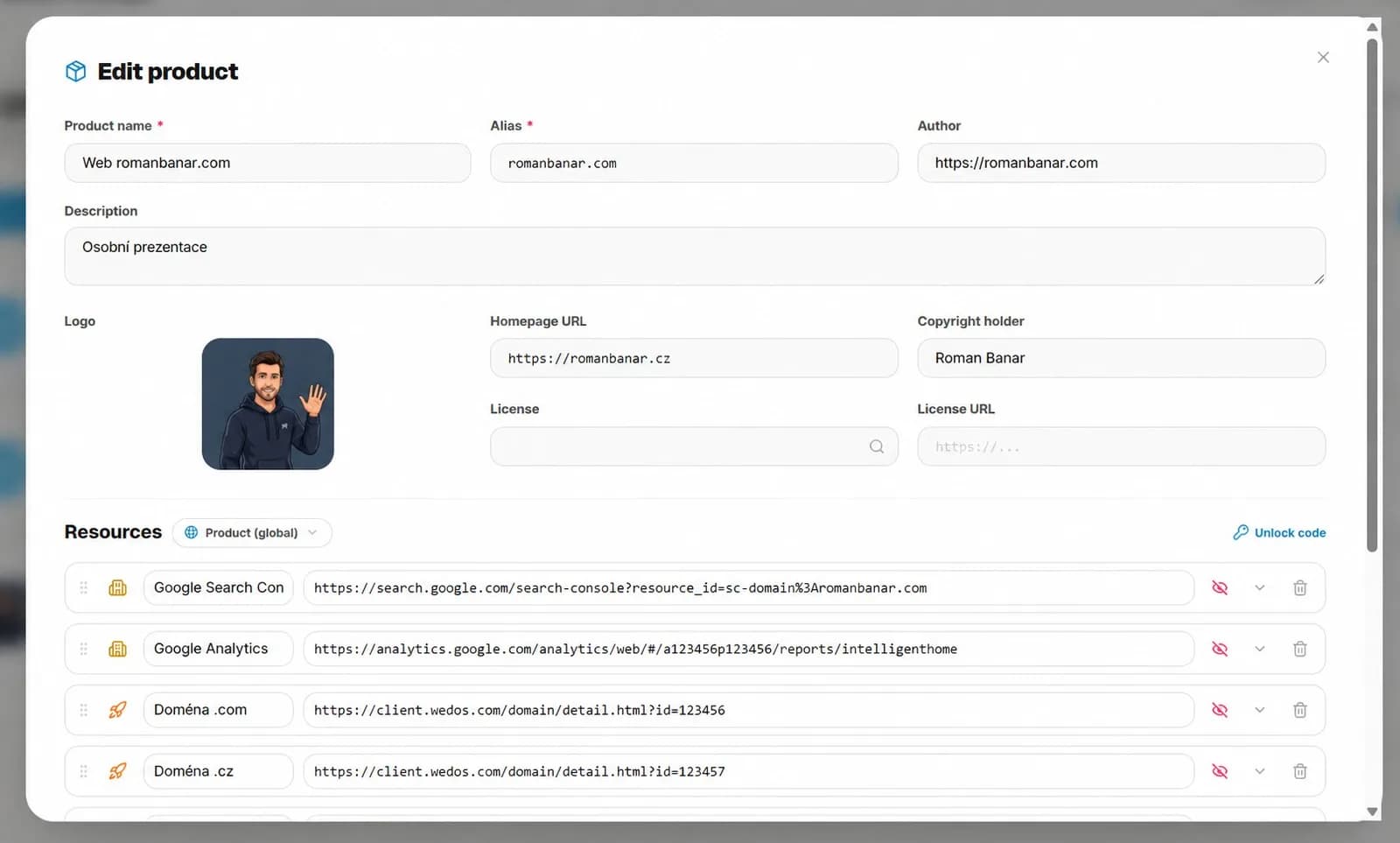
You add links in the AboutTheApp product editor, right on the app they belong to. You only have to move them over once from your bookmarks, READMEs, wiki or memory.
- 1
Create the app
In the dashboard, click Add product and fill in the name and alias. The alias sets the unique About page address, so room-booking gets the address aboutthe.app/room-booking. If your product name is unique, use it. Otherwise, combine it with the name of your company, team or project.
- 2
Add your links
Under Resources, click Add resource, pick a category and enter a URL or email. You can also add a custom label and a short description.
- 3
Set the visibility
For each link, choose whether it's Public or Private.
- 4
Sort the links
At the Product (global) level, change the order of links by dragging them with the mouse.
4. Public and private links
Public links are visible to anyone on the About page and to users of the About box in your app. Private links are visible to signed-in members of your team and anyone with the unlock code. Visitors without a code don't see them at all. If you turn on Also show private resources (as locked) in the integration panel, they see them as locked without a URL.
You can generate an unlock code or enter your own and set it for the whole app, one customer or just one of their environments. Each code only unlocks its own scope, so a customer with their own code won't see the private links of the whole app. You pass the code in the About page URL as unlockCode or in the About box's unlock-code attribute.
An unlock code doesn't expire and isn't tied to a user. It keeps internal links away from visitors they aren't meant for, but it doesn't protect secrets. Passwords and API keys don't belong in AboutTheApp. Put them in a password manager and save just a link to them with the product.
5. Links per customer and per environment
Links in AboutTheApp have three levels that stack hierarchically. A switch in the product editor sets who a link applies to. If a customer has more than one environment, you can also pick a specific one.
A customer inherits links from the product level. But as soon as they have their own link in a category, it replaces all links in that category from the level above on their page. An environment's link replaces the customer's links in the same category the same way. To edit an inherited link, click Unlink, which creates an editable copy, and Revert to parent level takes you back to the original. If you want to keep inherited links in a category alongside your own, unlink all of them.
Customers see their links at aboutthe.app/your-alias?customerAlias=customer-alias, optionally with an environment parameter for a single environment. Search engines don't index these pages. So you can run one app for several clients and each client sees their own help desk, docs and environments.
| Level | Applies to | Example |
|---|---|---|
| Product (global) | All customers and visitors | User guide, privacy policy, repository |
| Customer | One customer, all their environments | The client's help desk, contract, custom docs |
| Customer environment | One environment of a customer | Staging admin panel, test accounts, production monitoring |
6. Where your team, customers and users see the links
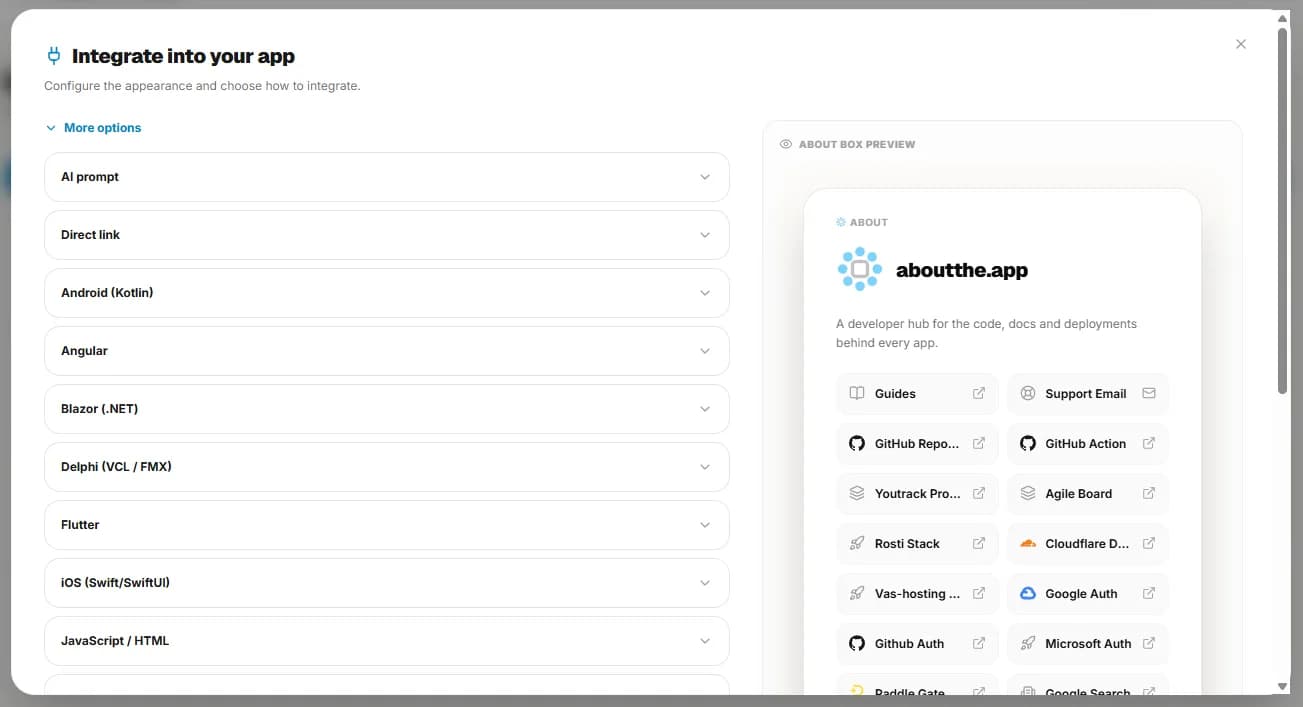
Links in AboutTheApp are available in three places and they're the same everywhere. The About page at aboutthe.app/your-alias is a hosted page you can send to anyone. You can put the About box right into your app as a web component, so users and support can reach the links straight from the running app. You can also build your own display with the simple GET /abouts/:alias API.
If you change a link in the dashboard, the change shows up without a new deployment. When the docs move, you fix them in one place. Your README and wiki don't need their own copy of the list, just a link to the About page. In a README, you can also use the badge from the Integrate panel (aboutthe.app/badge/your-alias), which shows the app name and its current public version and links to the About page. The dashboard also shows all your apps together, which gives you a start on an application inventory, and the About page link makes a software handover easier.
7. How to keep project links current
Project links stay current when you use them regularly and update them as things change. A new environment, a new service or a tool change means updating the link in AboutTheApp.
You add links by hand and browser bookmarks aren't imported. Confluence, Jira and GitHub stay where they are and AboutTheApp just links to them.
Frequently asked questions
How do teams keep all project links in one place?
Store them right with the app in AboutTheApp. Links are grouped by category, each one is public or private and your team, customers and users find them on the About page or in the About box inside the app.
Are shared bookmarks enough for project links?
For a small team of developers starting out, yes. But bookmarks can't separate public and internal links or links per customer and support and customers can't reach them. Regular bookmark sync also only covers one account, so sharing takes a browser extension or an admin in the Google Admin console.
How do I show a customer only their links?
Assign the customer to the app and add links at the Customer level or for one of their environments. Then send them the About page URL with the customerAlias parameter. For private links, you can give them their own unlock code that only opens their scope.
Can I store passwords and API keys in AboutTheApp?
No. AboutTheApp isn't a vault and private links are only protected by an unlock code that doesn't expire. Link to the entry in your password manager or secrets vault and manage access there.
Are customer links and private links free?
Yes, public and private links and links per customer and environment are on every plan. The Free plan is limited to one app and one member and you can invite team members on the Team plan.
In short
Project links belong with the app, not in individual users' bookmarks. In AboutTheApp, you add them once and decide who sees them, so your team, customers and users all find them in the same place.
Want your links right with the app?
Create a free AboutTheApp account and add links to your app's code, docs, hosting and support.